How to Use Google Translate for Text Translation in Chrome's Sidebar?
Everyone has likely used Google Translate—it's available as a web version and a mobile app, serving as an excellent free translation tool.
But have you ever wondered how to use Google Translate directly in Chrome's sidebar for text translation?
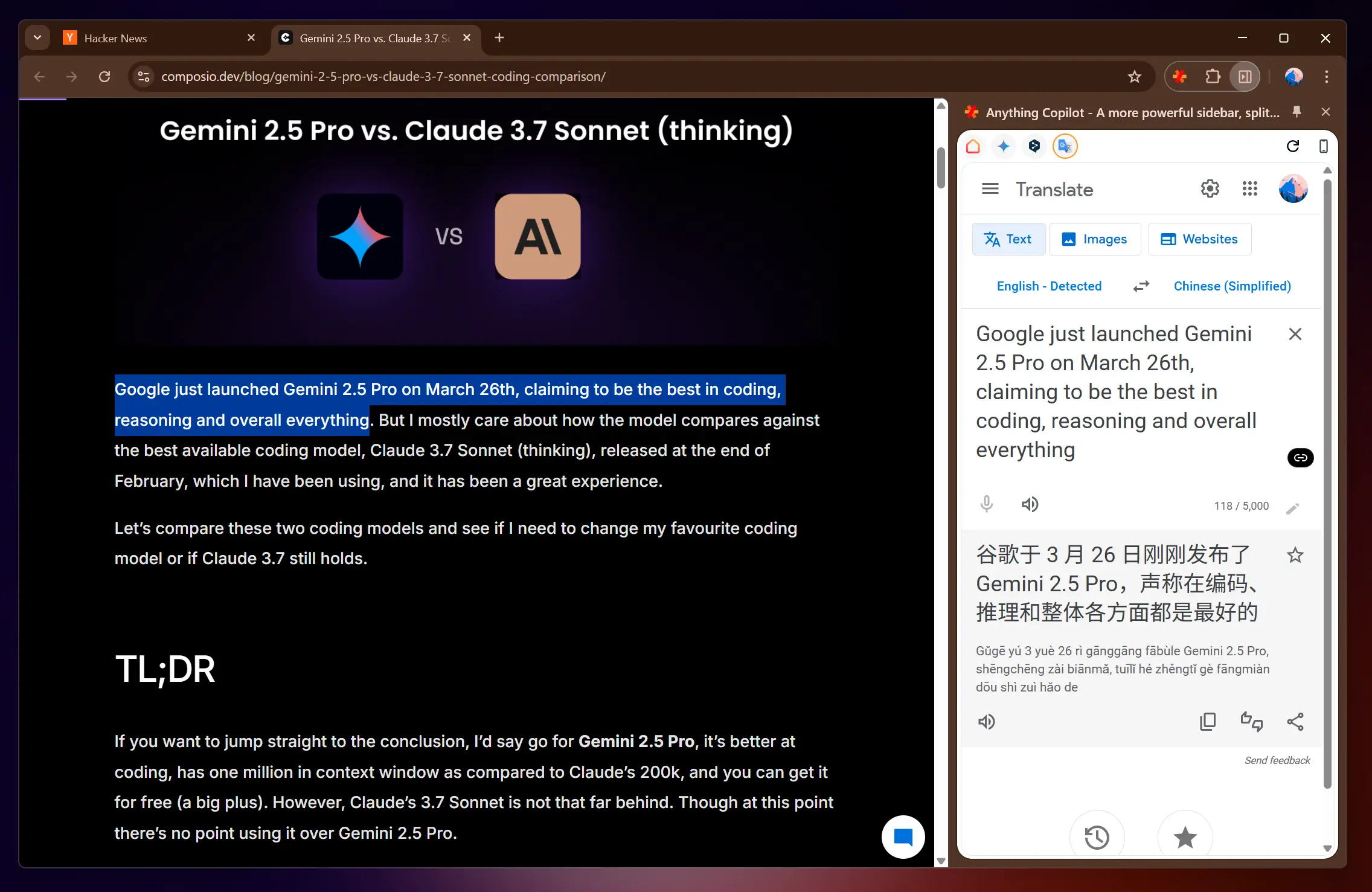
What Are the Advantages of Using Translate in Chrome's Sidebar?
- The sidebar can be displayed alongside other web pages without switching tabs for translation.
- The sidebar remains visible on the side of the browser even when switching tabs, allowing instant translation and viewing of results.
- No need to copy and paste—selected text can be directly translated in the sidebar.
How to Use Google Translate in Chrome's Sidebar?
Anything Copilot is a powerful browser extension that supports using Google Translate and AI for text translation in the sidebar.
Google Translate itself doesn’t support direct use in Chrome's sidebar, as Chrome's sidebar only accommodates extensions and some built-in tool pages.
Even the Google Translate extension doesn’t work in the sidebar, so we recommend installing the Anything Copilot extension to enhance sidebar functionality.
- Install the Anything Copilot extension from the Chrome Web Store

- Open the Anything Copilot sidebar
- Use any of the following methods to open Google Translate in the sidebar:
- Click the Google Translate icon in the Anything Copilot sidebar
- Type
translate.google.comin the search bar and press Enter - Click this link (requires Anything Copilot installation)
- Now you can use Google Translate in the sidebar. However, you might notice that you still need to copy and paste text between panels.
Don’t worry—Anything Copilot’s "Input Portal" feature can solve this issue.
Input Portal
The Input Portal is a "hidden" feature of Anything Copilot, and it’s incredibly simple to use—just one step:
- Right-click inside Google Translate’s input box and select "Input Portal"
Once the Input Portal is activated, any text selected on the page will instantly "teleport" to the sidebar’s input field.
If you followed the steps above, selected text will automatically display real-time translation results in the sidebar.